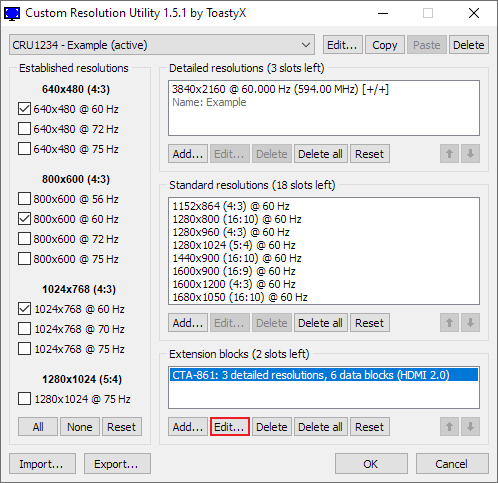
It has been a while since CRU has had a major update. I've been working on rewriting CRU from scratch, but it's taking longer than I'd like, so I thought I'd release a work in progress to give advanced users something to play with. Some features have not been reimplemented yet, and it has not been fully tested.
Custom Resolution Utility (CRU) 1.5.2 has a new vertical total calculator that can be used to create lower refresh rates with a specific pixel clock. This makes it easier to implement Quick Frame Transport (QFT), which can help reduce crosstalk with backlight strobing at lower refresh rates.
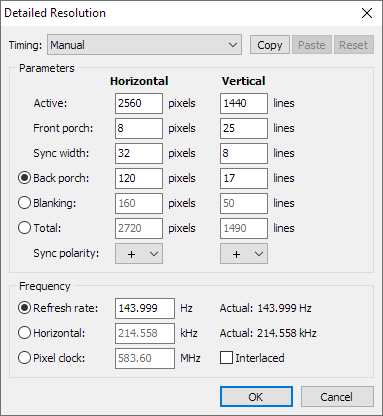
Start with an existing high refresh rate detailed resolution:
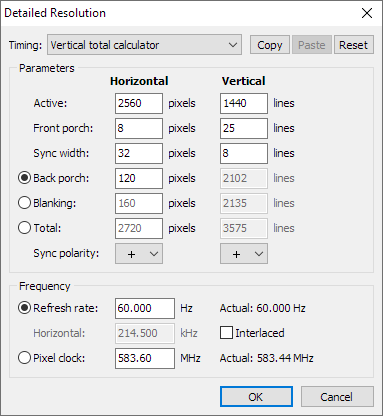
Change the timing to "Vertical total calculator":
Enter a lower refresh rate.
The vertical total is automatically calculated based on the entered refresh rate and pixel clock.
In this mode, the frequency radio buttons determine the rounding method:
If refresh rate is selected, the pixel clock is rounded down to get closer to the entered refresh rate.
If pixel clock is selected, the pixel clock is left unchanged, but the actual refresh rate might be slightly higher than entered.
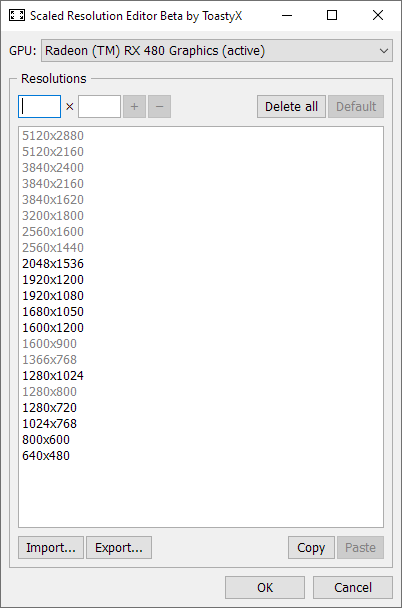
Introducing Scaled Resolution Editor (SRE), a new program that lets you edit the list of GPU-scaled resolutions that are automatically added by the graphics driver. For AMD GPUs, you can also add custom VSR resolutions.
Some 4K UHD TVs define 4096x2160 even though their native resolution is 3840x2160. This can cause scaling problems when games automatically choose the highest resolution or when using NVIDIA's Dynamic Super Resolution (DSR). This guide will show you how to disable 4096x2160 using Custom Resolution Utility (CRU).
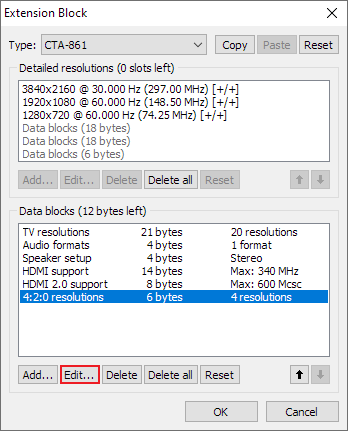
4096x2160 can exist in these CTA-861 data blocks:
TV resolutions
HDMI support
4:2:0 resolutions
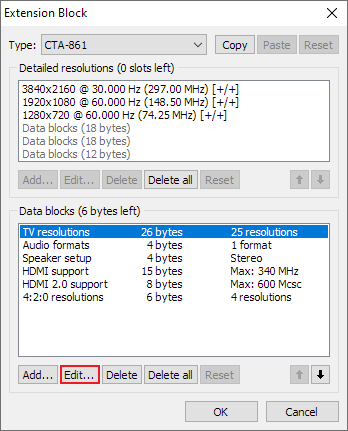
Edit the CTA-861 extension block:
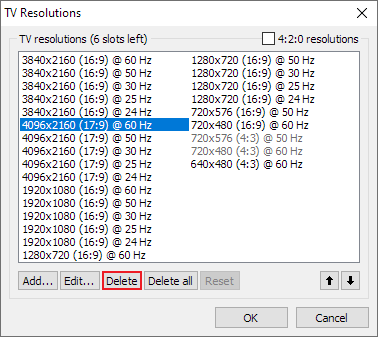
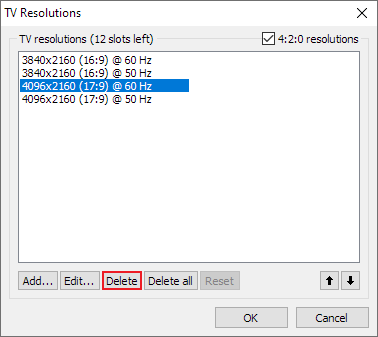
Edit the "TV resolutions" data block:
Delete all of the 4096x2160 resolutions:
Click the "OK" button.
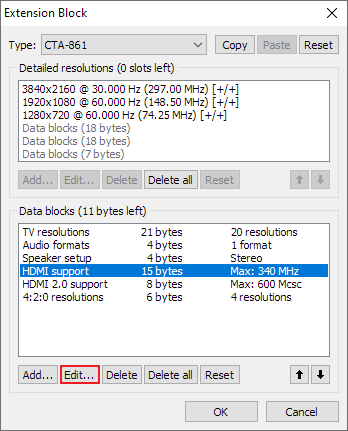
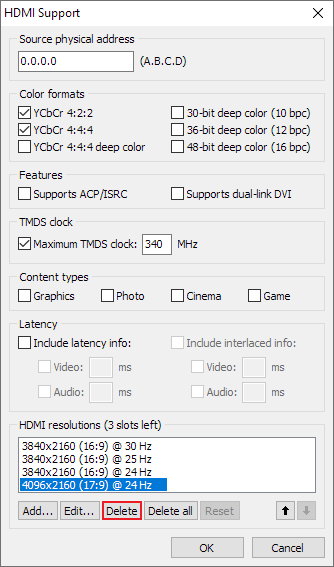
Edit the "HDMI support" data block:
In the "HDMI resolutions" section, delete 4096x2160 @ 24 Hz if it exists:
Click the "OK" button.
Edit the "4:2:0 resolutions" data block if it exists:
Delete all of the 4096x2160 resolutions:
Click the "OK" button on all of the dialogs. Then run restart.exe or reboot.
After following this guide, 4096x2160 should no longer exist. To revert all changes, run reset-all.exe and reboot.
Added DisplayPort YCbCr color formats and maximum color depth (use the "Edit..." button at the top)
Added HDMI 2.1 features including maximum FRL rate, variable refresh rate, and display stream compression
New and improved timing options for detailed resolutions:
"LCD standard" has been split into "Automatic (PC)" and "Automatic (HDTV)" to better accommodate different display standards. The main difference is how they handle resolutions greater than 1920x1080 @ 60 Hz and 21:9 resolutions. "PC" favors CVT-RB, while "HDTV" favors CTA-861.
"LCD native" has been split into "Native (PC)" and "Native (HDTV)" for the same reason.
"LCD reduced" has been eliminated because it was too arbitrary and only worked for certain resolutions. Try "Exact reduced" for an alternative.
"CRT standard" is now "Automatic (CRT)" and includes 4:3/5:4 VESA DMT resolutions. Use "CVT standard" for the old behavior.
Added "Exact" and "Exact reduced" to calculate exact integer refresh rates.
Added common display standards: CVT, CVT-RB, CVT-RB2, and GTF (previously "Old standard")
Detailed resolutions can now calculate frequencies for all possible pixel clocks (up to 167772.16 MHz for DisplayID 1.3)
CEA-861 extension blocks are now called CTA-861 to reflect the standard's new name
Added support for DisplayID 2.0 extension blocks
Export now saves the original unmodified EDID if no changes were made
Overscan is a common issue with HDTVs, but there are some steps you can take to disable overscan:
Check the TV's settings and see if there is an option to disable overscan.
Use CRU to edit the affected detailed resolution and choose "CVT-RB standard" timing. This will use a different timing standard that some TVs will not overscan.
If you don't need HDMI audio, use CRU to delete the extension block, or edit the extension block and delete HDMI support. This will cause the GPU to send a DVI signal, which most TVs will not overscan. This will not work with 4K TVs.
Use the graphics driver's control panel to scale the image down. This will affect image quality.